
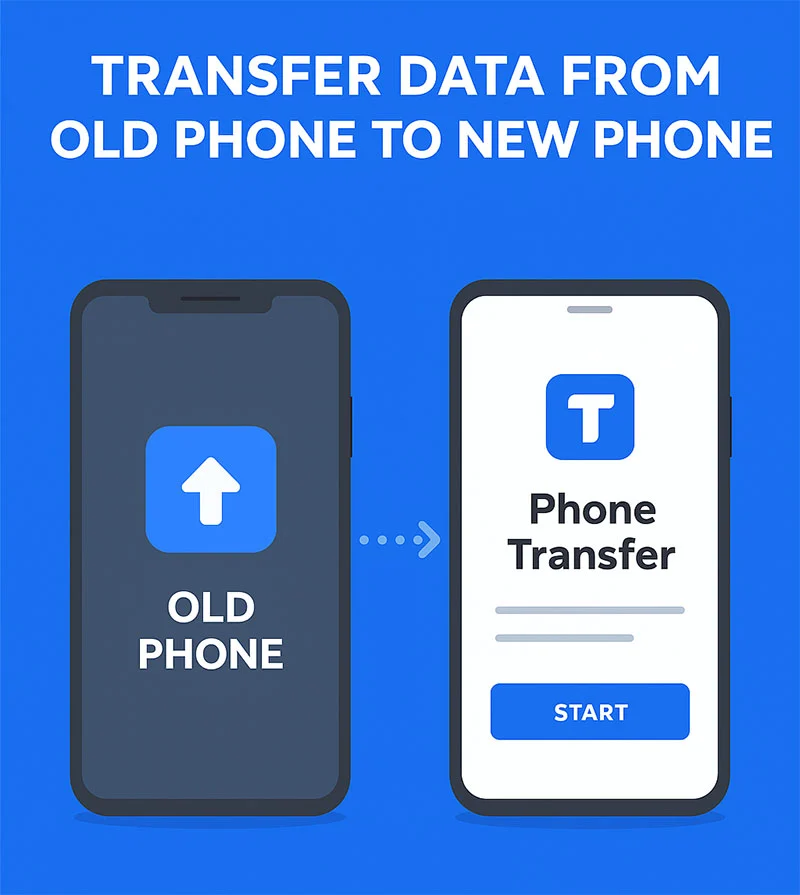
Transfer Data from Old Phone to New Phone with MobileTrans :- Upgrading to a new phone is exciting — until you think about moving all your stuff. Contacts, photos, chats, and apps… it feels like a lot. But don’t worry, the MobileTrans app makes it simple. You can transfer everything in minutes — no cables, no stress, no lost data.
Transfer Data from Old Phone to New Phone with MobileTrans
1. What Is MobileTrans?
MobileTrans is a data transfer app by Wondershare. This app helps you to move all phone data — contacts, messages, photos, videos, apps, and even WhatsApp chats and Media — from one device to another.
It works for Android and iPhone, so it doesn’t matter what phone you’re switching from or to.
2. Why Use MobileTrans?
Here’s why people love it:
- No complicated setup. Just install and tap to start.
- Cross-platform support. Works for Android ↔ iPhone transfers.
- Secure. No data goes to the cloud — it’s device to device.
- Fast. Transfers happen in minutes.
- All-in-one. It even moves WhatsApp and other app data.
3. How to Transfer Data Using MobileTrans
Here’s the step-by-step process — it’s really that easy.
Step 1: Install the App
- Download MobileTrans from Google Play Store or Apple App Store.
- Open the app on both Phone old and new phones.
Step 2: Connect Both Phones
- On one phone, tap “Phone Transfer”.
- Connect the devices using a QR code or USB cable.
Step 3: Choose What to Move
- You’ll see options like contacts, photos, videos, messages, and more.
- Select what you want to transfer.
Step 4: Start the Transfer
- Tap Start and let the app do its work.
- Keep both phones close and connected till it’s done.
That’s it — your data will appear on the new phone accurately as it was before.
4. Moving WhatsApp Chats with MobileTrans
Don’t want to lose your chats and photos? MobileTrans has you covered.
- Open the app → Choose WhatsApp Transfer.
- Connect both phones.
- Tap Start Transfer and wait a few minutes.
All your messages, images, and attachments will appear on your new phone — just like magic.
5. After the Transfer
Once everything’s done:
- Open your new phone and check your apps, photos, and messages.
- Sign in to your usual accounts (Google, Apple, or WhatsApp).
- Everything should be ready to go.
6. A Few Helpful Tips
- Make sure both phones are charged above 50%.
- Keep them close for stable connection.
- Don’t close the app while waiting for the transfer finishes.
Final Thoughts
Changing mobile doesn’t have to be a headache. With MobileTrans, you can move everything in just a few click — safely and fast.
So, when you get your next phone, skip the cables and confusion. Just open MobileTrans and take your digital life with you — simple as that.